
Web Admin Portal
There are two ways to use the Administation Aplication, the legacy Management Console, which is Windows-based, and the web-based Administration Portal. Here, we go over the web-based Admin Portal.
There are two ways to use the Administation Aplication, the legacy Management Console, which is Windows-based, and the web-based Administration Portal. Here, we go over the web-based Admin Portal.
The DialedIn CCaaS Management Console application (formerly ChaseData) is used for a variety of configuration and management tasks. Let's divide them in the following groups:
Do note that access to the Management Console application is based on user permissions, which determine (1) if the user can log in at all, (2) what the user can access, and (3) whether the user can make changes.
The web-based Admin Portal does not require installing anything, as long as your Operating System and browser are up-to-date. We do recommend using a top browser that abides to web standards.
You're given access to the Admin Portal when your setup has been completed by DialedIn Support. To access it, just use your assigned link, which has the following form : https://CLIENTSUBDOMAIN-web.chasedatacorp.com/admin/login, where CLIENTSUBDOMAIN-web will be provided to you, accordingly.
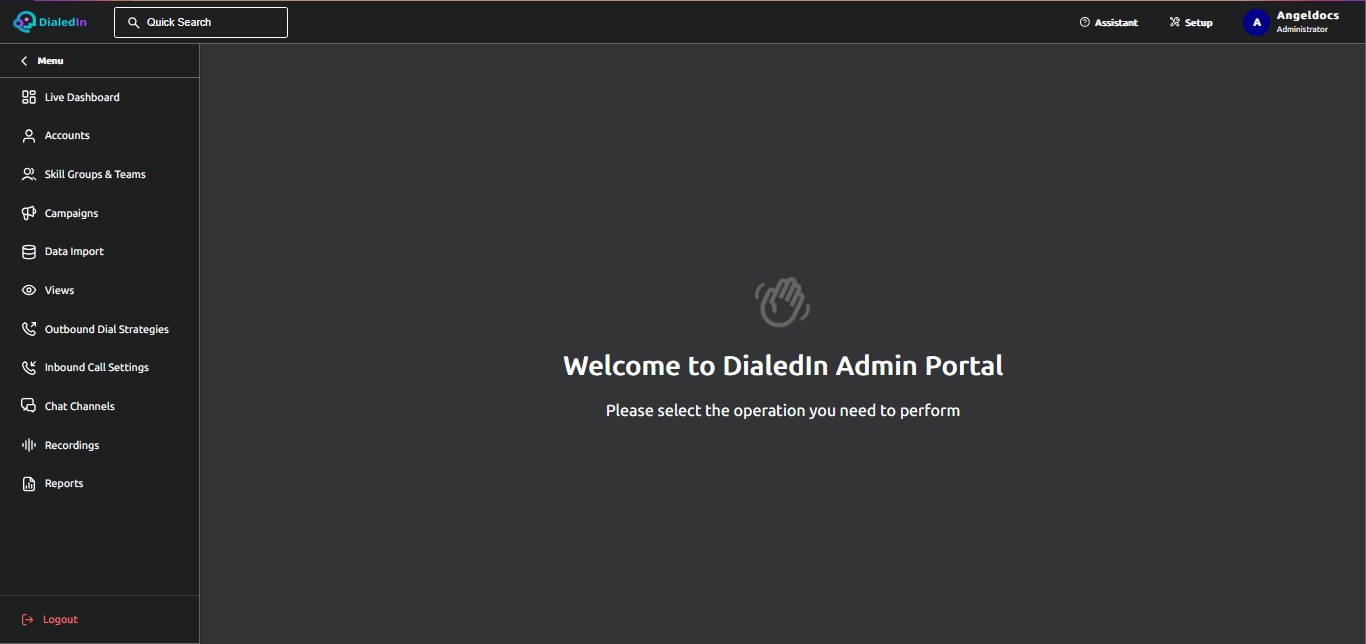
Refer to the next picture showing the main Admin Portal screen. On the left side you can see the main menu on a darker background. The top area, highlighted with a different brackground color, will show the high-level component currently in focus (none in this picture since we haven't selected anything yet).
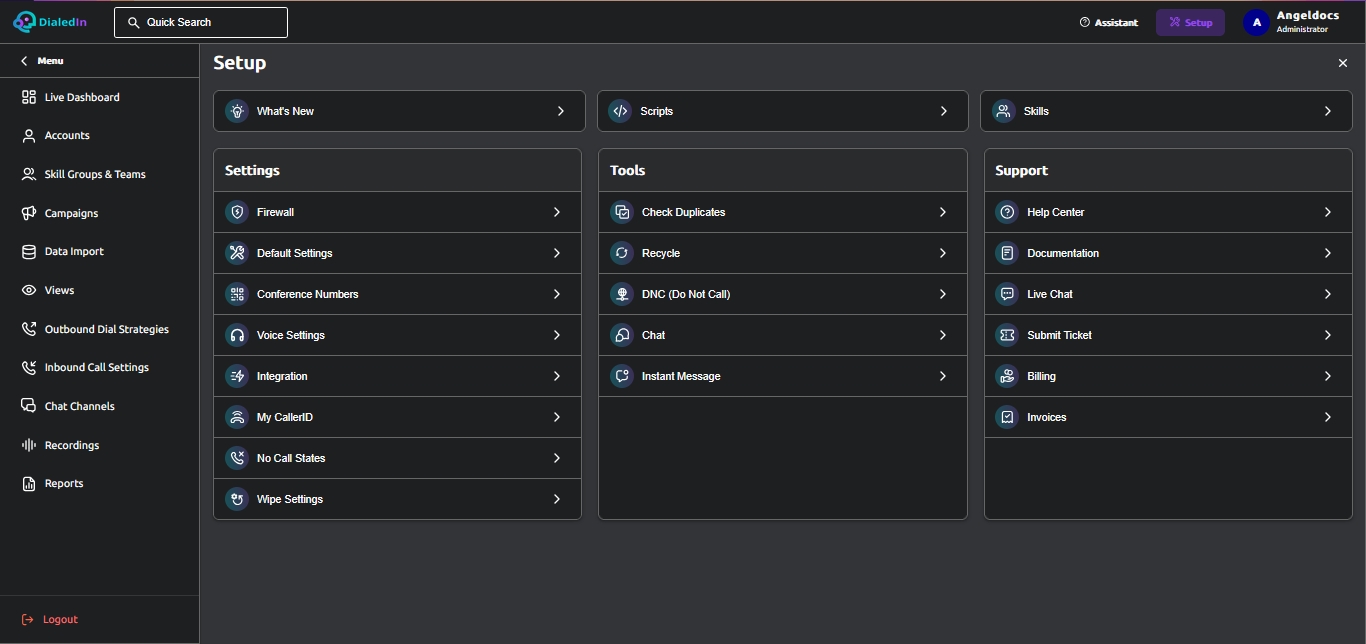
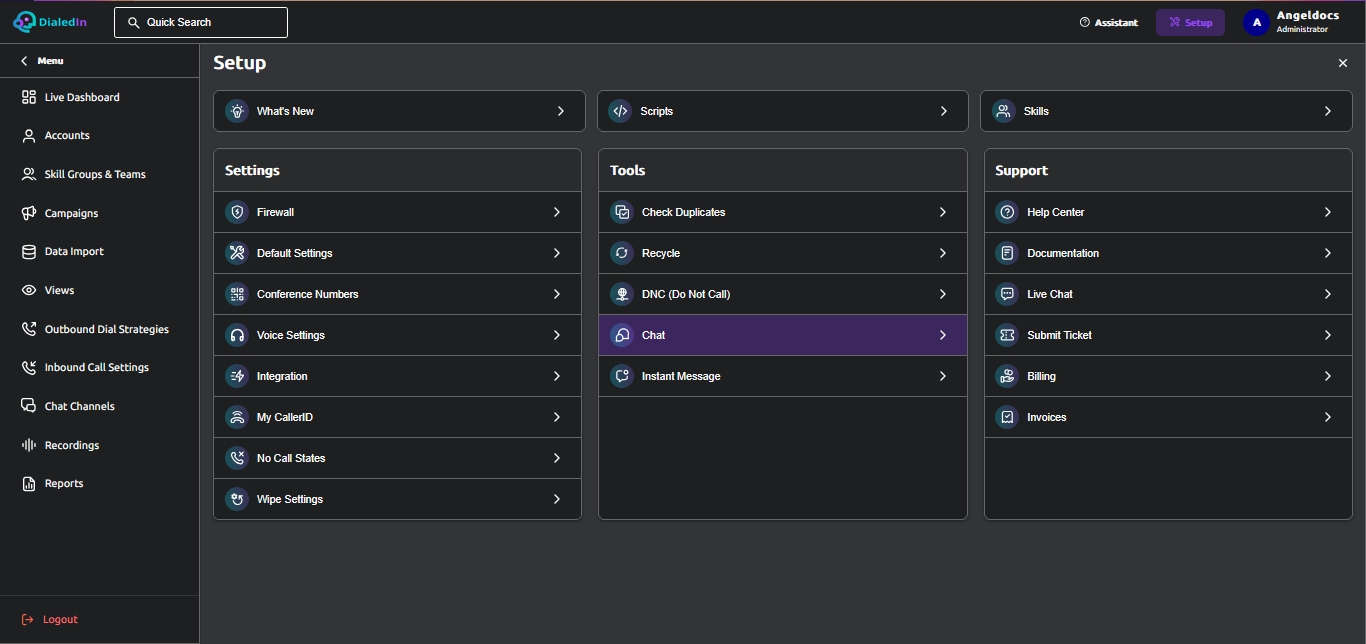
An additional selection menu will appear when clicking on the settings⁄setup icon on the right side of the top area. See the following picture for the contents of this menu.
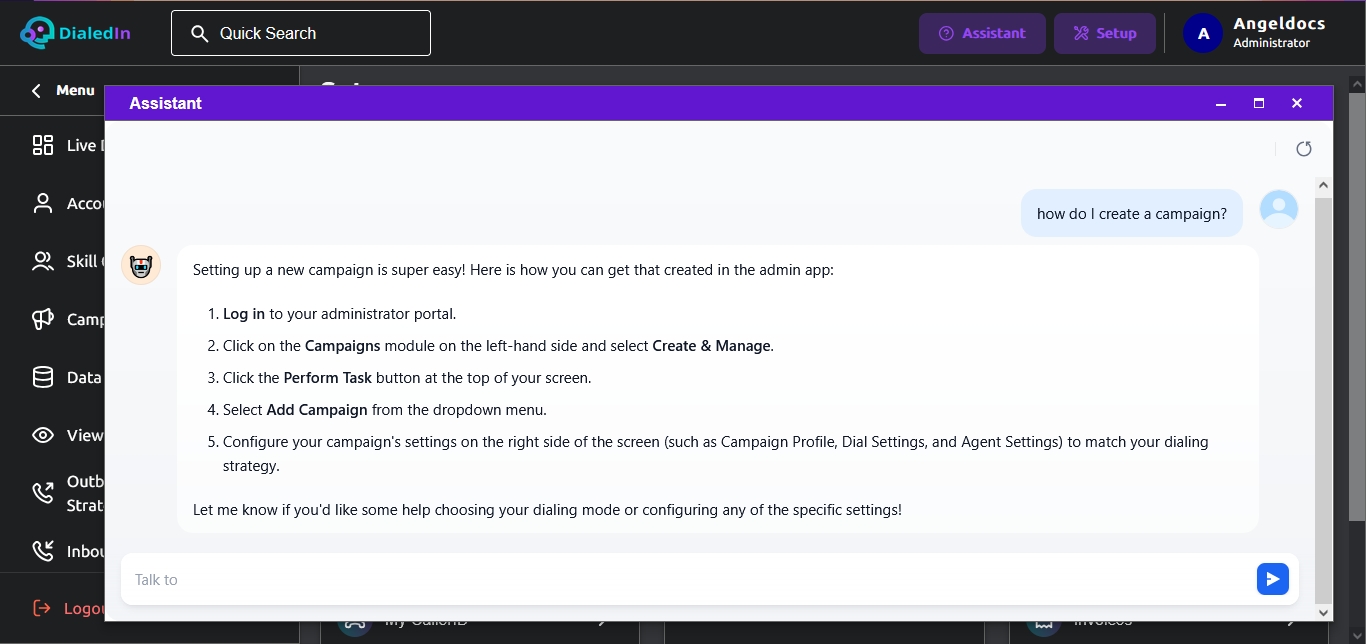
Finally, the Admin Portal brings along an AI-based Assistant to help you get answers and make the best use of the tool. See the following picture for an example of how it could be used.
We will next address all the GUI areas and menus when discussing each functional setup and administration subject in the following sections.
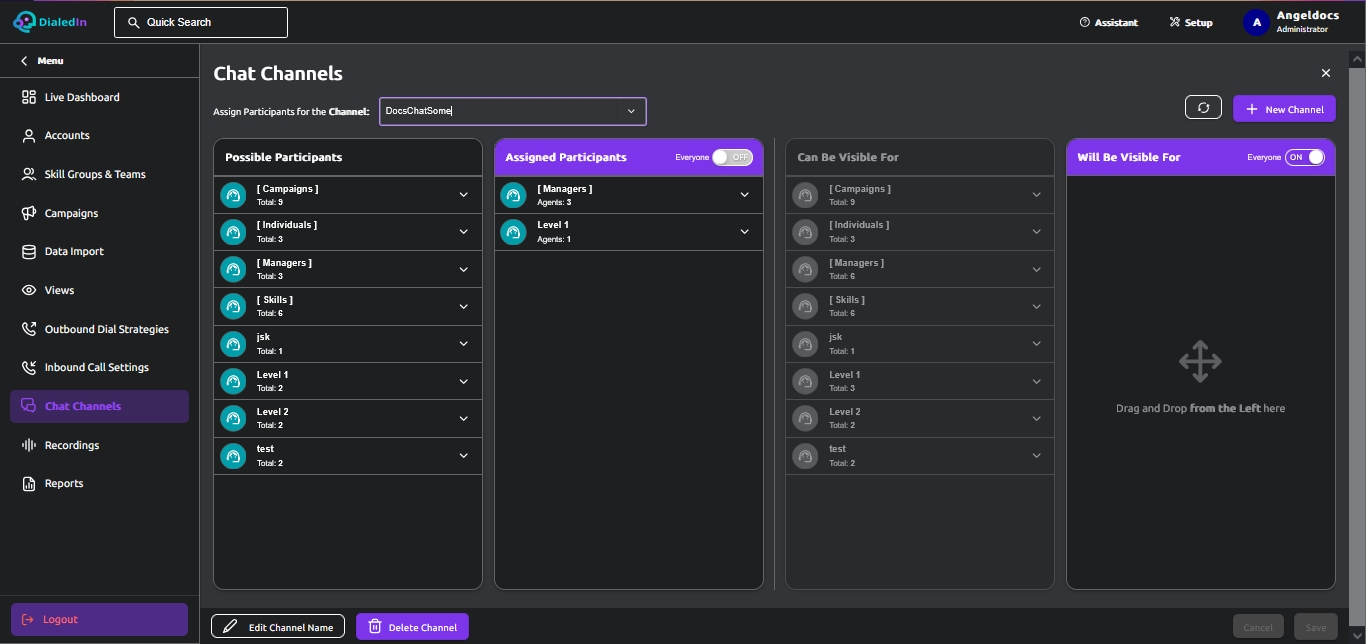
While using the Admin app, a user can start a chat with other users, or repond to one, whether admins or agents, making operational communications highly accesible. These chats follow the chat group setup under Chat Channels.
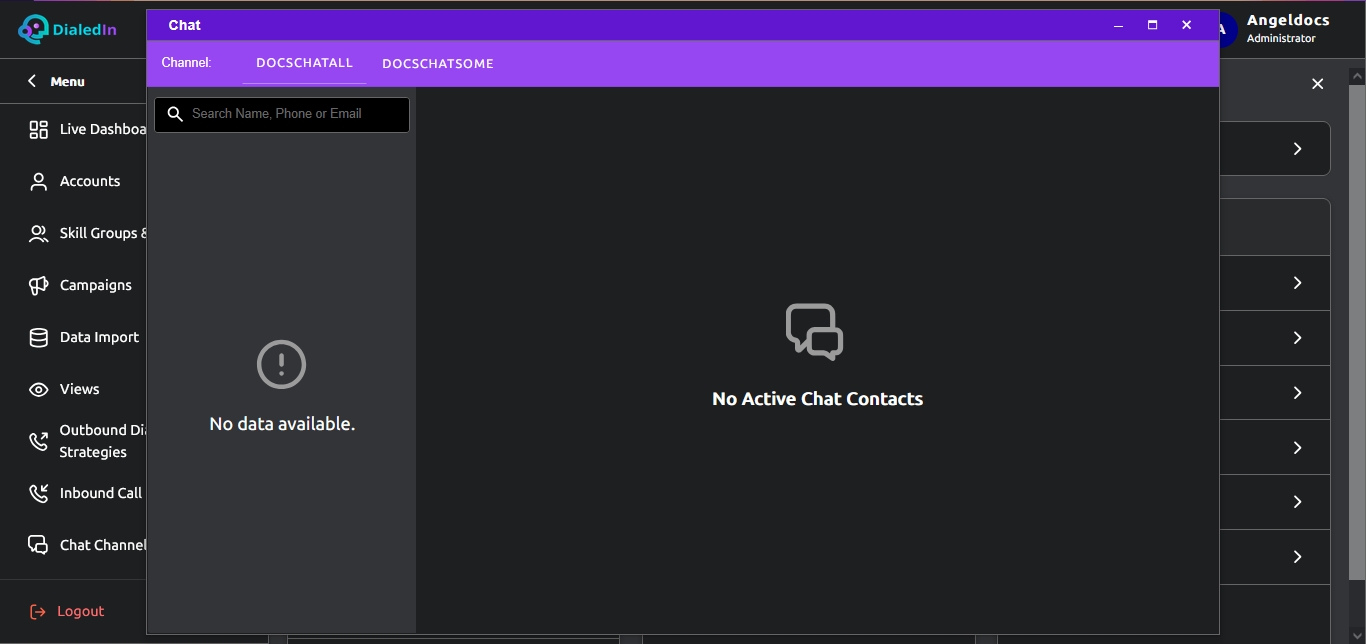
To access chats from the admin app, select Chat from the Tools menu. This will bring up the chat window where you can select any of the configured chat channels visible to you. Refer to the following pictures.
For example, let's assume the chat group in the following picture was configured.
In this example, an agent, David A, has initiated a chat with a manager, Angeldocs, from his agent interface, and the manager answered from the chat box in the Admin app. Refer to the following pictures.
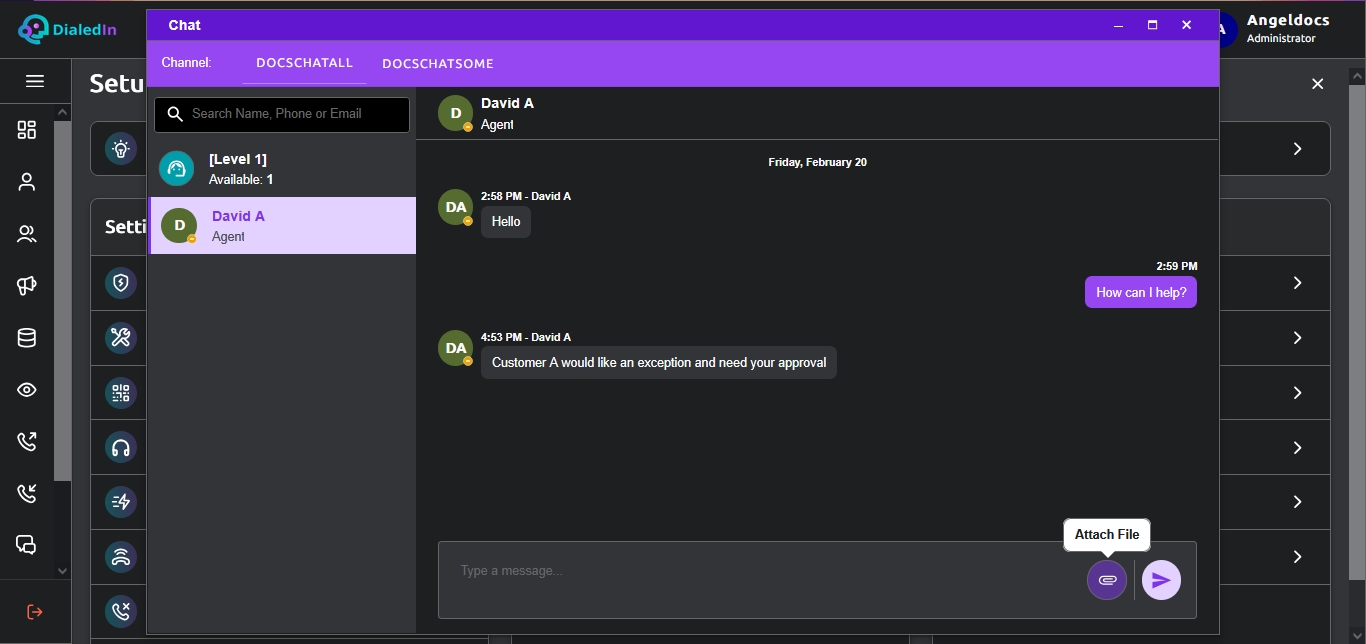
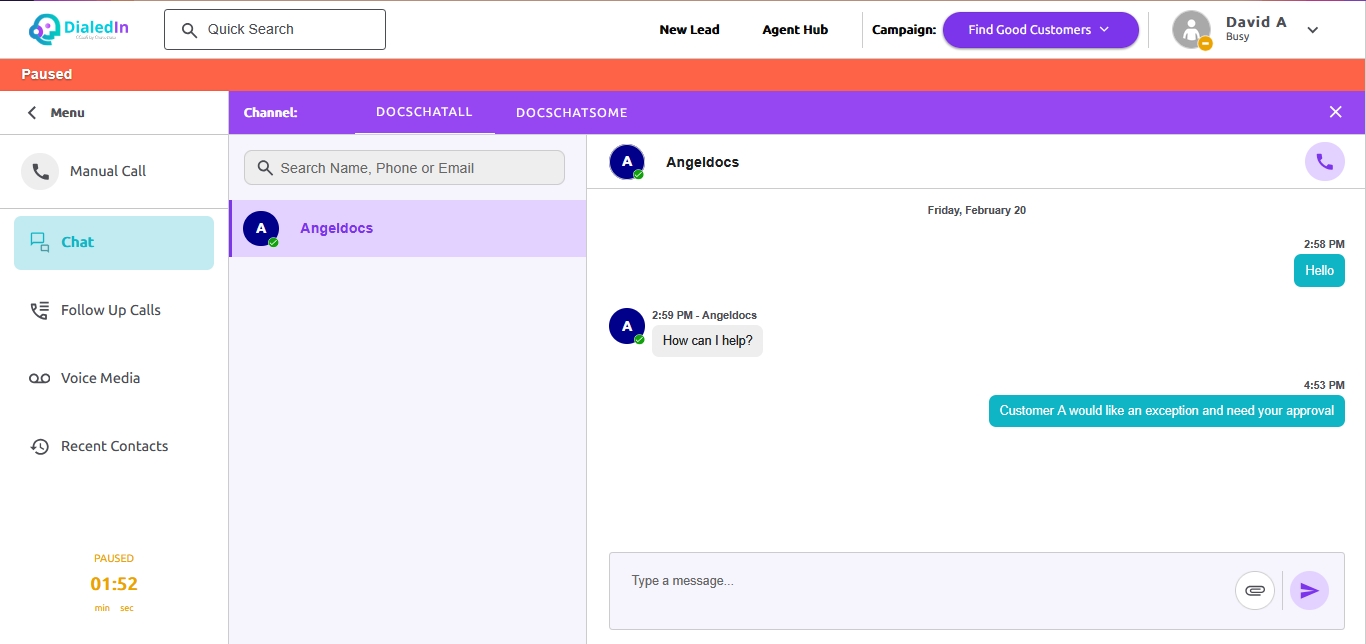
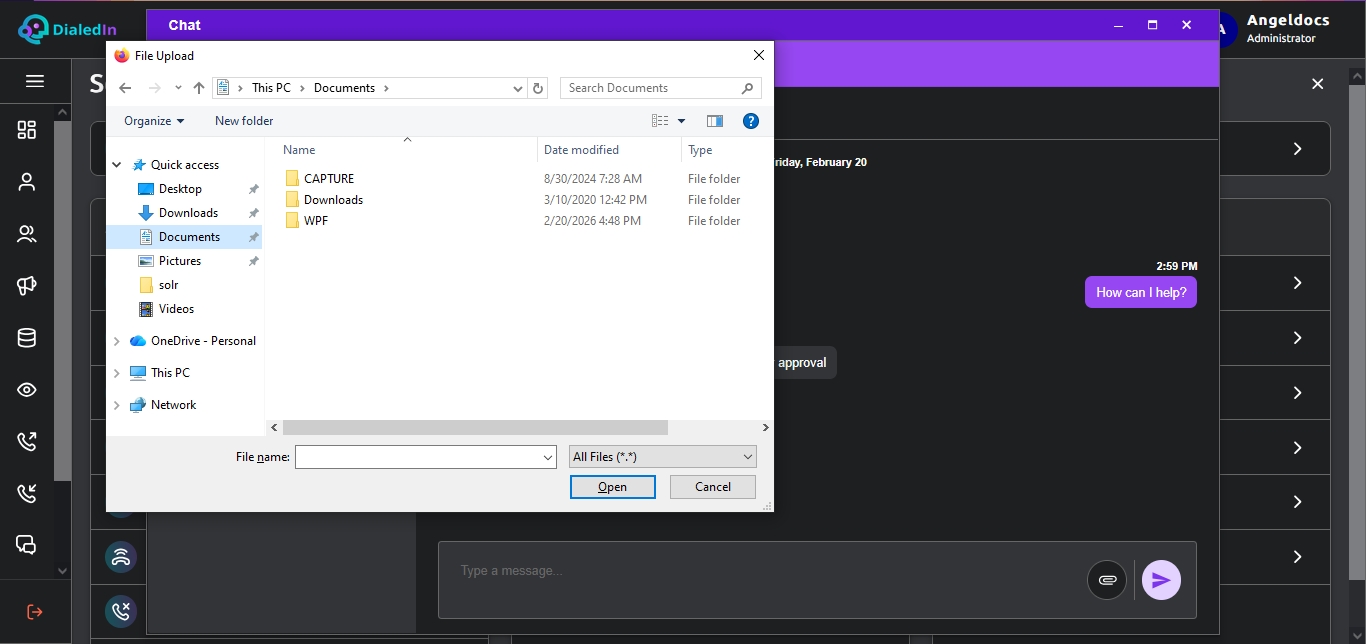
The chat interface allows for attachments to be included. The following picture provides an example of how a file selection dialog is brough up for this purpose when the attachemnt icon on the right lower corner is clicked.
To prepare the system for call center and telemarketing activities, all the components and corresponding rules need to be configured. This includes accounts, campaigns, and dialing rules. Each of these depend on the definition and configuration of other elements that must first be created and/or configured before they can be used within the higher‑level components.
Go here to get detailed information setting up and managing Accounts, Default Settings, Campaigns, Outbound Call Management, Lead Counts, Inbound Contact Center, General Tools and Data, Communication Channels, and Typical Configuration Sequence.
In this section we will see how to import and manage data that is used by the DialedIn CCaaS solution (formerly ChaseData). That includes Contact information, Do-Not-Call (DNC) information, call records, and recordings.
Some of this information, like Contacts, is fed into the system, which then may process it and aggregate it during the course of call center activities. Other information, like call records, is generated by the system based on actions and activity.
Go here to get detailed information setting up and managing Data Import, Lead and Call Records (Views), Audio Recordings, DNC Records, Check Duplicates, Recycle, and Quick Search.
Dashboards and Reports offer a wealth of information, whether you need them in a chart or a table. Trends are easy to visualize, as well as call volume and call duration! You can check call effectiveness and efficiency, lead reach ability, as well as agent efficiency so you can adjust your operational parameters accordingly.
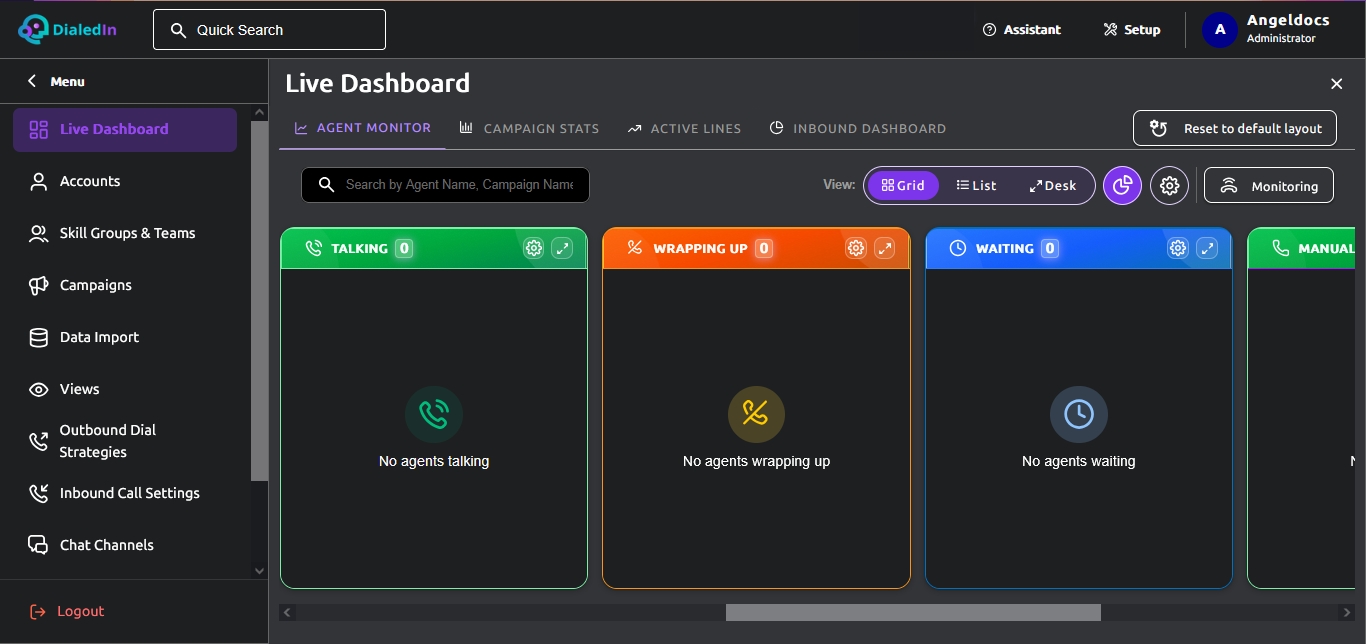
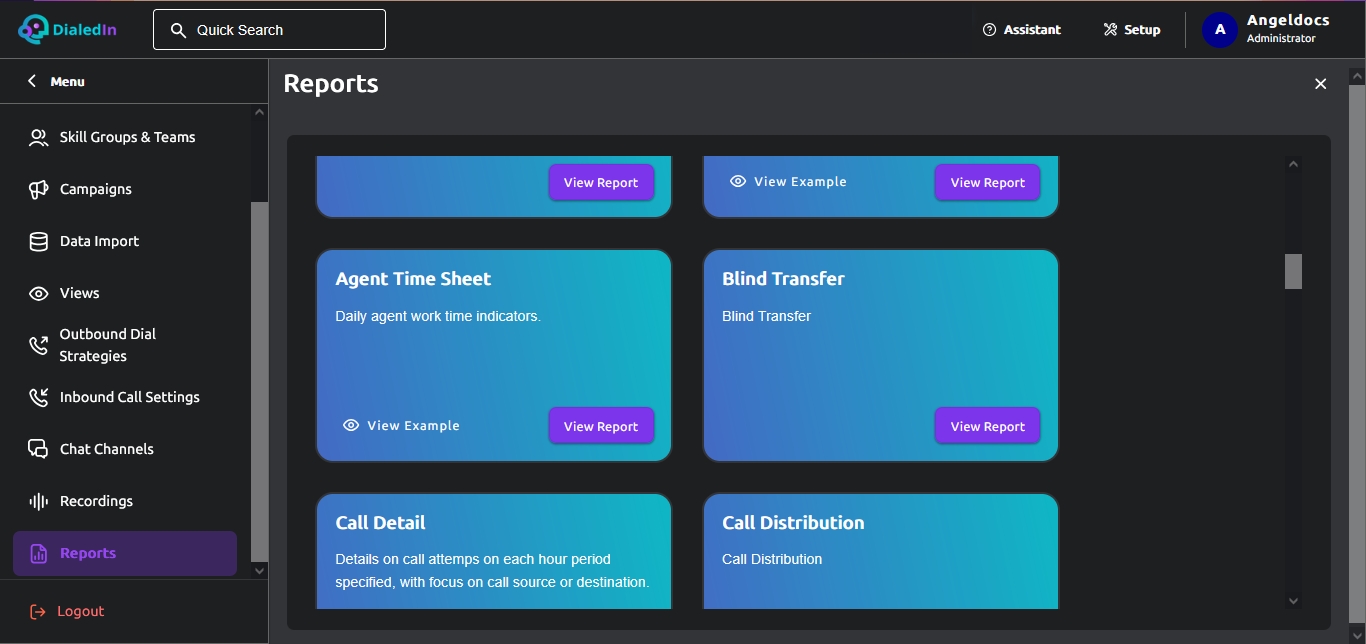
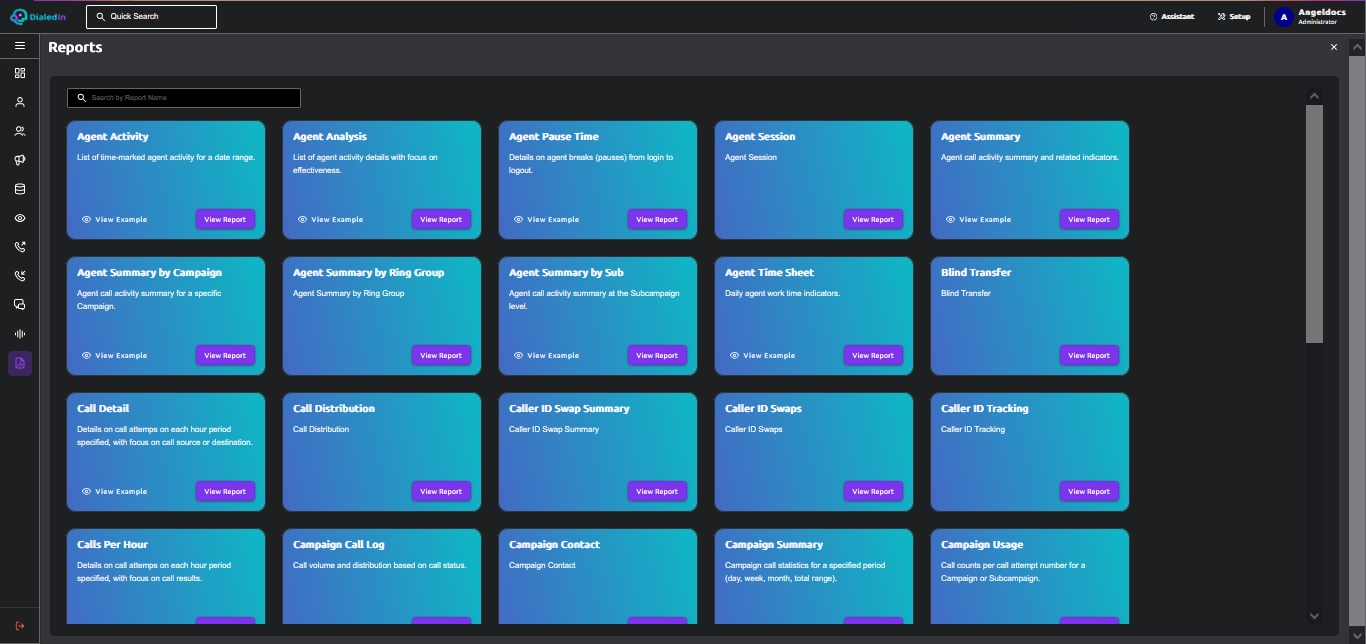
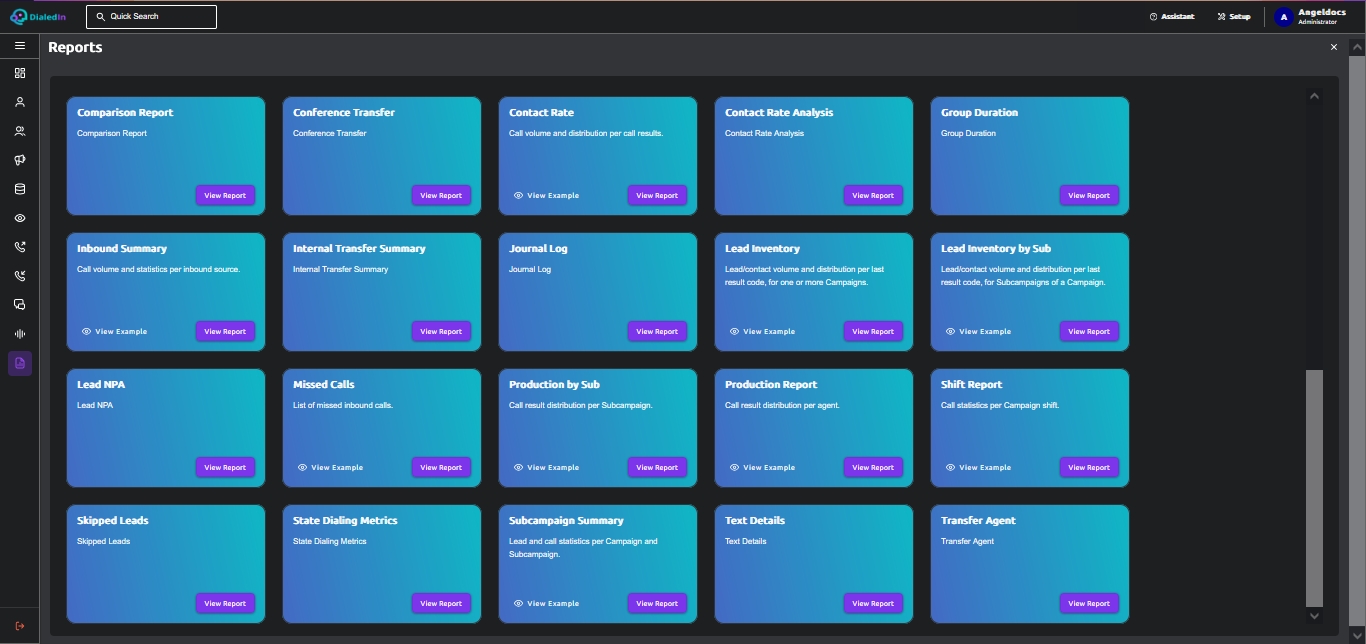
Go here to get learn about and use the Live Dashboard, Call Statistics Reports, Campaign Statistics Reports, Workforce Statistics Reports, and Customer Statistics Reports.